Menu


Quick Guide to setting up Voucher Products
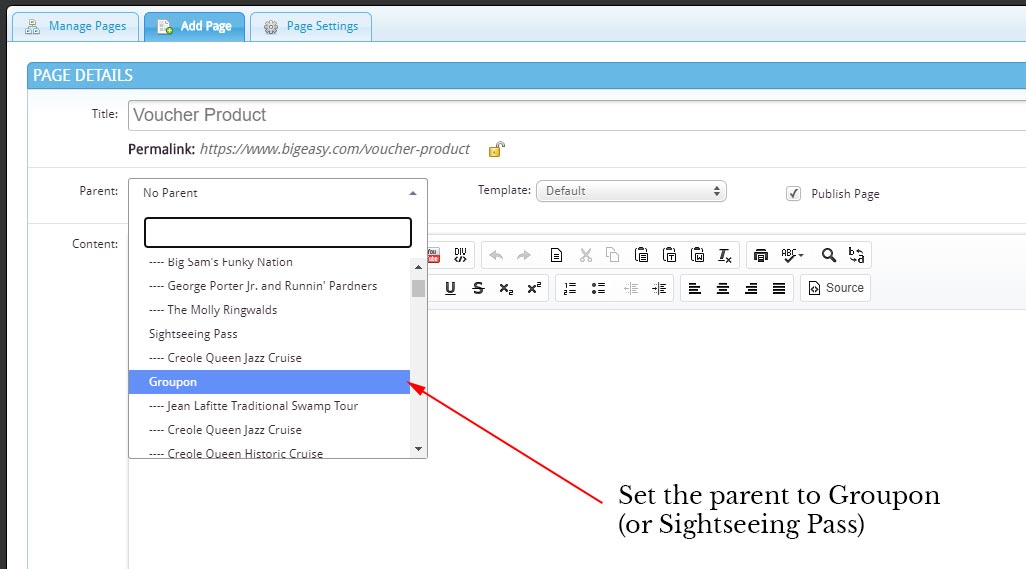
1) Create a new page, fill out the title and content. Then set the Parent to either Groupon or Sightseeing Pass (from the top most pages)
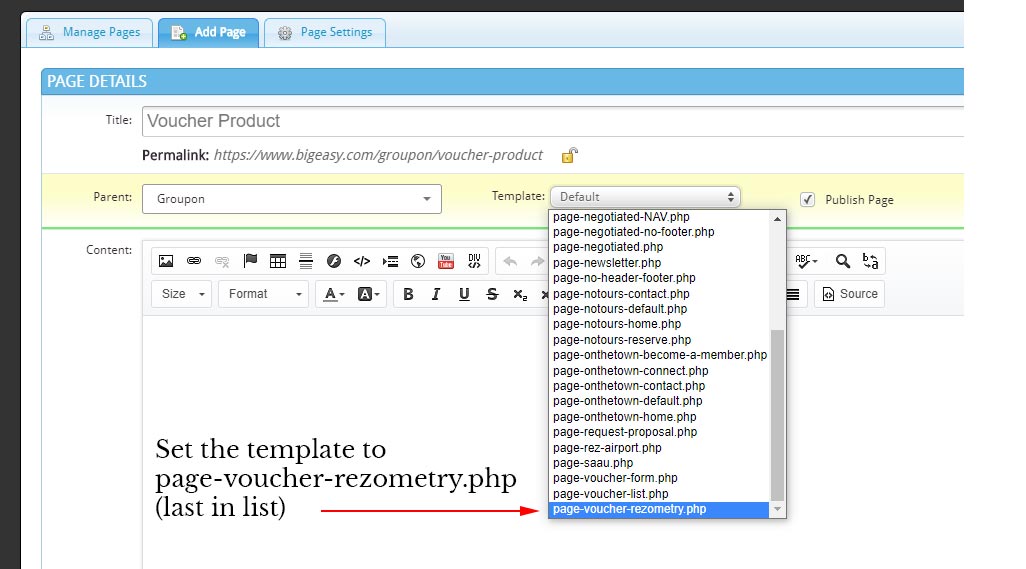
2) Set the template to page-voucher-rezometry.php
3) After that click the Green Save button and then find the newly created page and edit it again.
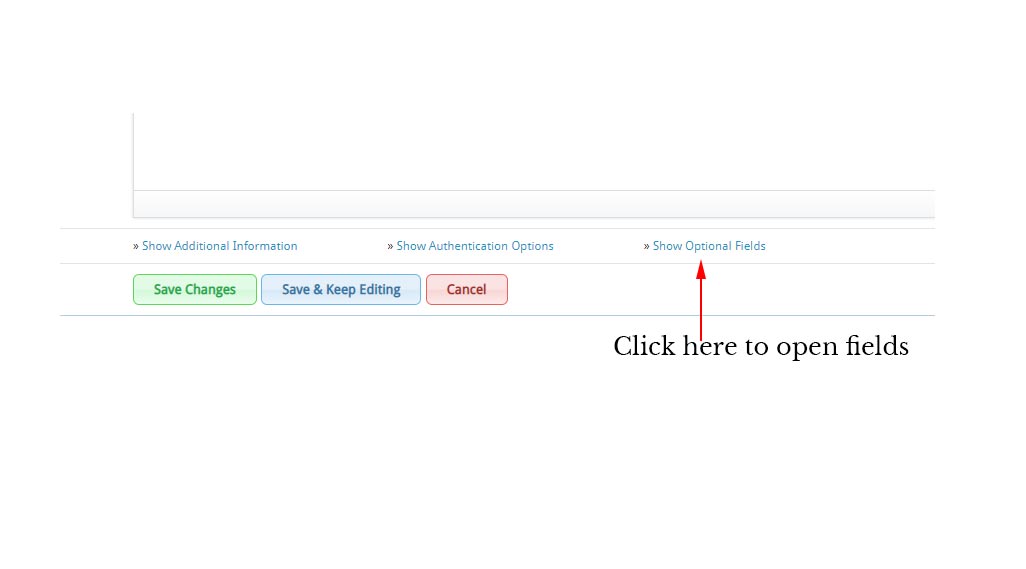
4) Once editing the page there will be some new options, towards the bottom is a link for optional fields, click that.
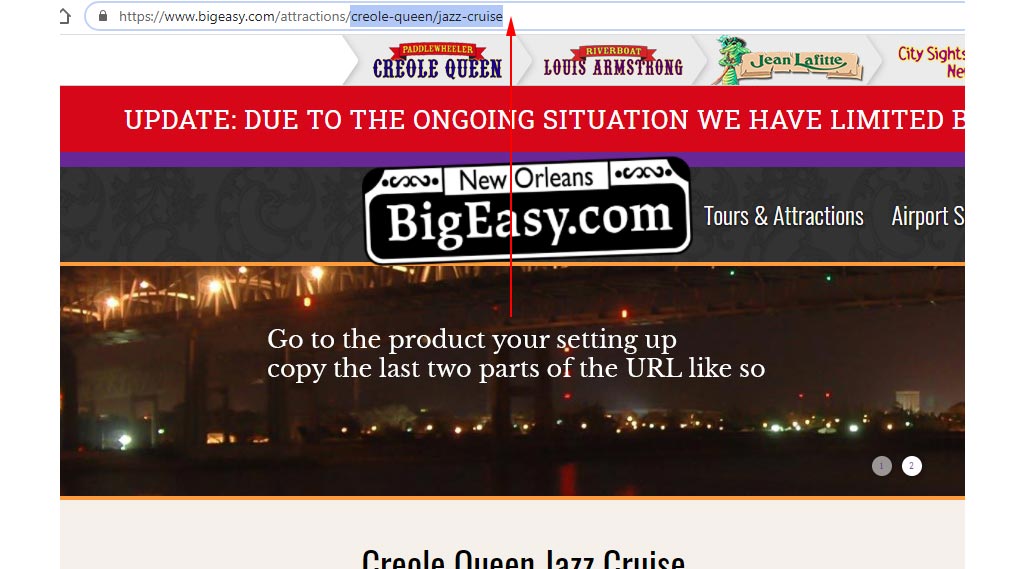
5) Before editing the field, open a new tab in your browser and visit the product you are setting up for vouchers. You need to grab the last 2 parts ot the product URL, it tells rezometry which sub company and which product we are going to be looking up. Copy the text (should only be 1 slash between the two parts, not before or after the selection).
6) Go back to the admin and then paste that part of the URL into the slug_bits optional field replacing the default group-name/product-name text.
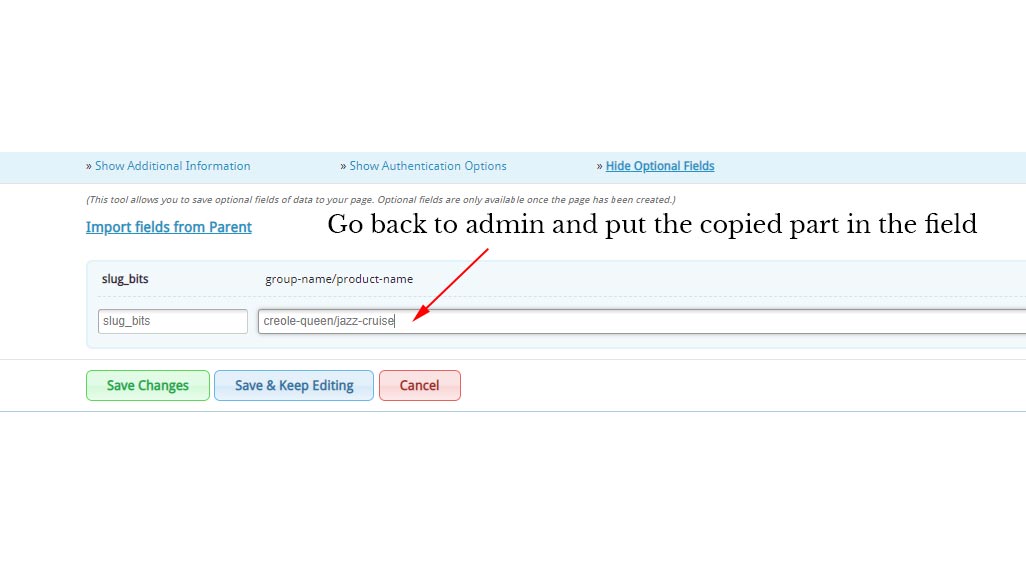
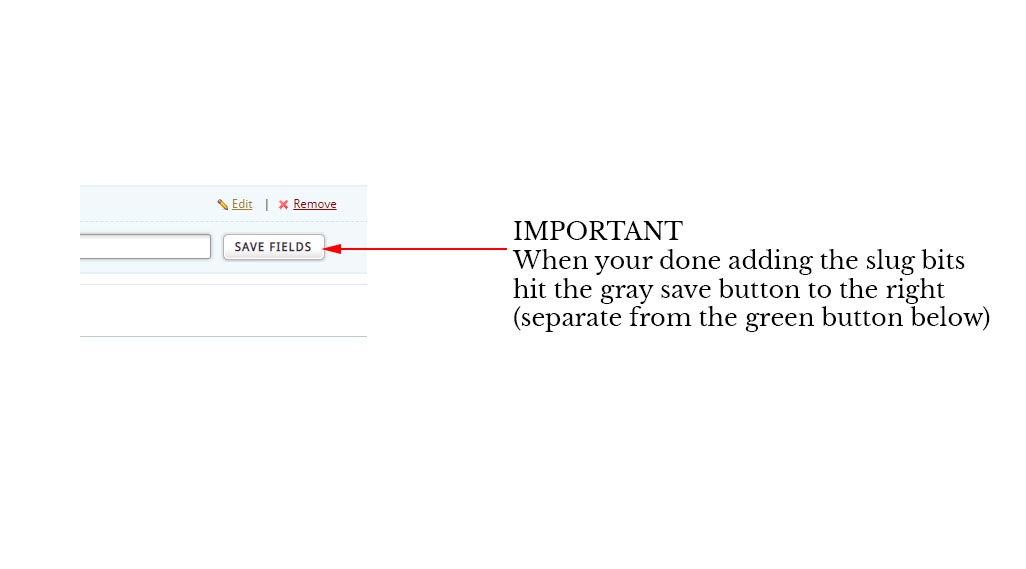
7) Important! When your done filling out the optional field you have to click the gray save button to the right of it, if you hit the green save button first it will be lost!
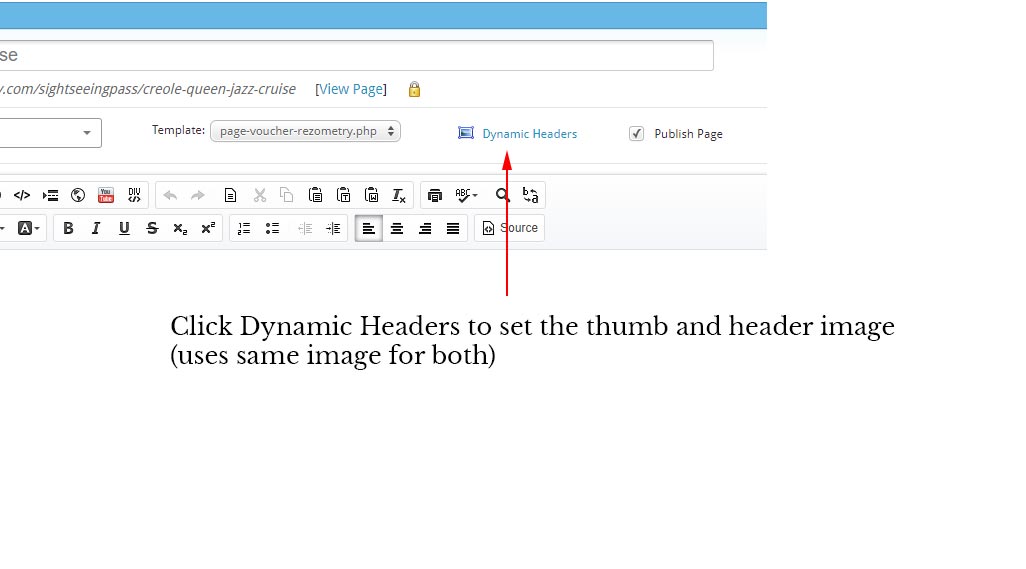
8) The last thing is the image. To add the header/thumb you just need to upload the photo you want to the dynamic header. Click the dynamic header link above the content and then select the photo from your computer. It should be pretty straight forward.
9) When your all done, now hit the green save button and the product should be visible under eiter of the voucher sections
IE: Groupon or Sightseeing Pass
Our newsletter is your ticket to everything New Orleans.
Hospitality Enterprises
New Orleans
4220 Howard Avenue
New Orleans, LA 70125
Phone: (504) 587-1601 | (800) 366-8882
Fax: (504) 592-0529
Privacy Policy
Connect with Us


New Orleans Paddlewheels


